Getting Started Quickly with Msty Studio
Welcome to the world of Msty Studio!
Whether you're new to AI or looking to level up your workflow, this guide will have you up and running Msty Studio in minutes.
Video Guide
Msty Studio at a Glance
Msty Studio is your all-in-one application for chatting with AI models, local or online, tailored to how you want to work.
You can run powerful local models directly on your computer for privacy, or connect to top online providers like Grok, Gemini, Claude, or GPT for the most cutting-edge models.
Experiment with split chats to compare responses side-by-side, dive into advanced features like Real-Time Data, MCP Tools, Personas, and Knowledge Stacks, and customize everything from model parameters to inference engines.
Available on macOS, Windows, and Linux devices, Msty Studio is designed for quick setup and endless experimentation, experiencing AI your way.
How to Install
Getting Msty Studio installed is a breeze.
Just head to msty.ai and click the Download Msty Studio button.
Msty.ai detects your operating system and will automatically download the right version for you, whether that's macOS, Windows, or Linux.
Next, open the downloaded file and follow the installation prompts specific to your OS. Once installed, launch Msty Studio from your applications folder or start menu.
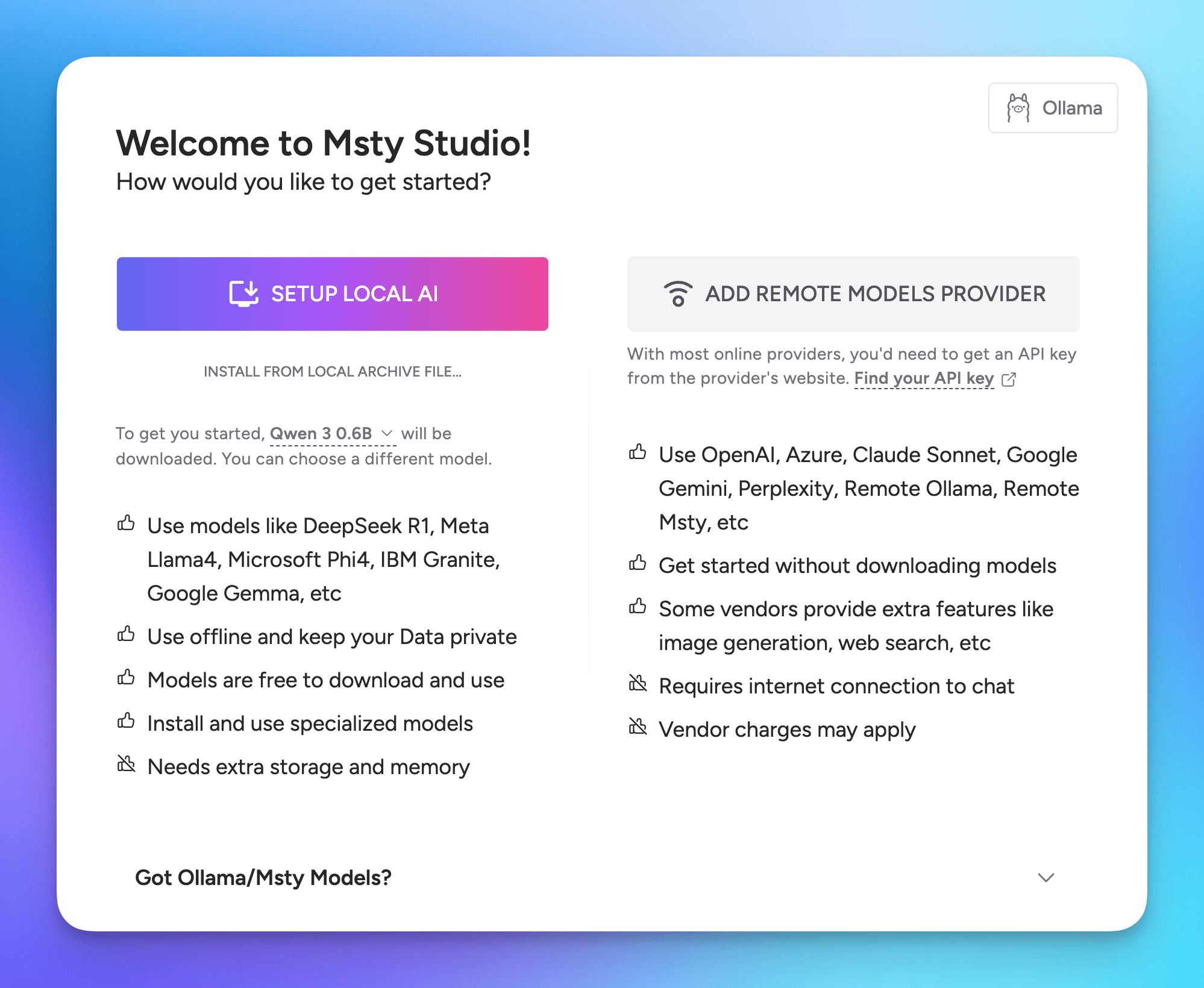
When you first launch Msty Studio, you'll see an onboarding screen asking you to either install a local model or connect to an online one.
For most users, selecting Setup Local AI right away is the quickest and easiest path. This installs local AI on your computer along with a small starter model that gets you chatting instantly.
If you're on an Apple Silicon Mac device, consider using MLX for optimized performance.
Windows/Linux users can opt for Llama CPP for another efficiently optimized local model option.
Already have models installed locally? Point Msty Studio to your existing Llama or Llama CPP folder.
Want to connect to an online model instead? Choose Add Remote Models Provider and follow the prompts to add your API key for providers like xAI, Gemini, Claude, and OpenAI among others.
What You Should Do First
After you move past the onboarding screen, your very first action? Start a conversation!
Msty Studio is optimized to get you started chatting right away.
- Type a question like "How can you assist me today?" or something fun/curious.
- Hit send and watch the magic happen.
That's it!
You're now talking to AI on your computer.
What You Should Do Next
Build on that momentum by expanding your model options.
- Click the Model Hub button to browse and install models - local or online, it's your choice.
- Local Models: Stick with Ollama (default), switch to Llama CPP or MLX. Search Ollama's library or Hugging Face for featured models. Install new models with one click.
- Online Models: Go to Model Providers > Add Provider. Pick from Gemini, Claude, OpenAI, xAI (Grok), and more. Grab your API key (check docs.msty.ai/studio and scroll to "Find Online Model API Keys" for guides), paste it in, and boom! You're connected to powerful online models.
Now that you have multiple models configured, try a split chat and see how they compare.
Create a new chat, assign different models (e.g., local Gemma, tiny Qwen, Grok), type once, and send to all. Compare answers to "What is the moon made of?" side-by-side.
Next, explore the left rail for more features like Personas, Toolbox, and Knowledge Stacks.
Using Local? Increase Context Limit for Improved Results
For longer conversations and more complex tasks, such as using Real-Time Data (RTD) or Knowledge Stacks, increasing your local model's context length is key for improved accuracy and reduced hallucinations.
Local models shine for privacy and offline use, however their context limits are low by default, which makes processing large amounts of context challenging and can lead to "hallucinations" or incomplete answers in long chats or complex tasks.
However, you can easily boost the context limit which will then improve the model's ability to recall prior messages and relevant information, providing you with a much better experience.
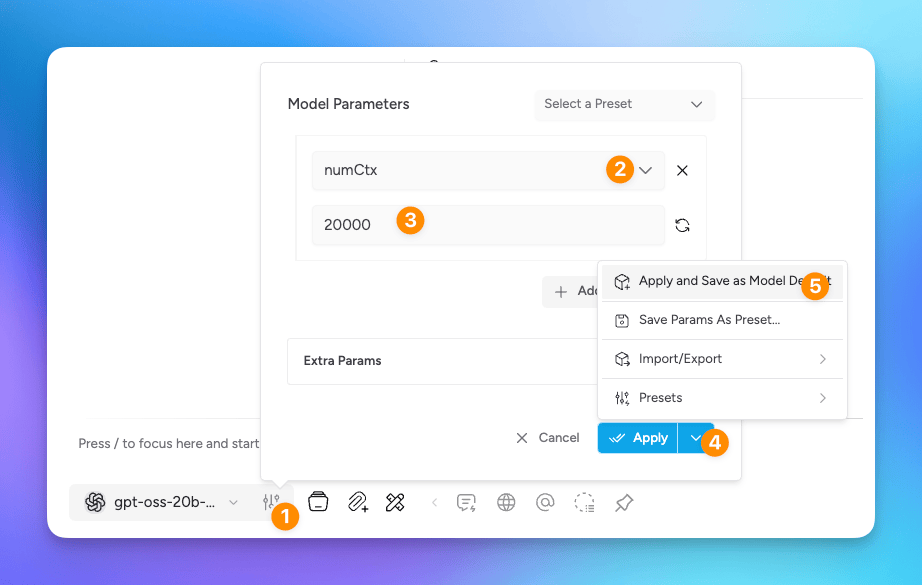
Easily increase your local model's context limit by:
- Next to your model, click the Model Parameters icon
- Select the
num_ctx(context tokens) parameter type from the dropdown; if using Llama.cpp, use the slider or set to use the model's max context - Set the desired value, such as
20000- the main tradeoff is higher settings will use more system resources - Select the down arrow next to 'Apply'
- Save as default for the model, this way every time you use the model, the higher context limit is applied
This unlocks improved responses for longer conversations or those that utilize Real-Time Data or Knowledge Stacks, where there is a large amount of context the local model is expected to process.
Become a Msty Studio Expert
You’re off to a great start!
Ready to level up? Experiment freely, and dive into our docs and videos to unlock everything Msty Studio can do.
Learn more: Subscribe to the Msty Studio YouTube channel for in-depth feature walkthroughs and weekly new content.
Join the community: Hop into the Msty Studio Discord for tips & tricks, submitting feature requests, and to discuss all things Msty Studio and AI.
Happy building! 🚀
Get Started with Msty Studio
Msty Studio Desktop
Full-featured desktop application
✨ Get started for free
Subscription required